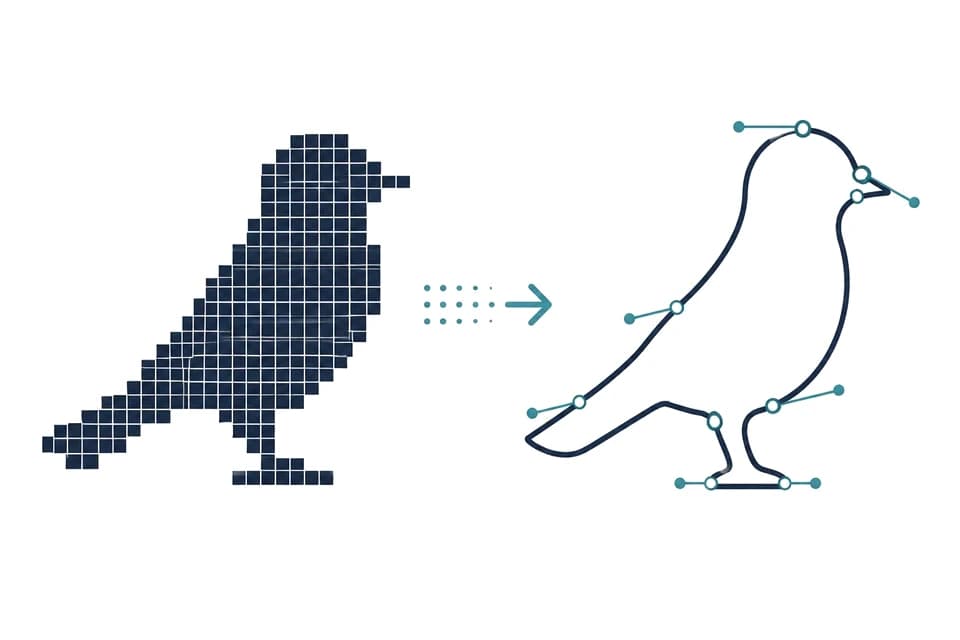
Convert any image into real, editable SVG paths.
Mix formats freely in a single batch. Upload JPG, PNG, WebP, AVIF, or ICO files together, trace them into vector paths, and export the whole set at once.
Image contents are processed temporarily and discarded after conversion.
Add JPG, PNG, WebP, AVIF, or ICO images and control the result.
Drop or choose up to 10 images.
Converted files
Converted images will appear here.
How it works
How do you convert an image to SVG?
- 01
Add a mixed batch
Drop in whatever you have — the converter detects each file's format on its own, so a folder of mixed JPGs, PNGs, and WebP files goes in as one batch.
Vectorize a brand asset folder where every logo was saved in a different format.
- 02
Set one palette for the set
Choose a tracing mode and color count that suits the artwork type rather than the file type. The source format barely affects the result; the content does.
Convert a mixed set of client-supplied images without sorting them first.
- 03
Export the whole set
Review each SVG, retry anything that missed, then download files one by one or take the complete batch as a ZIP.
Standardize screenshots, exports, and downloads into one SVG icon library.
Format guide
How do you convert an image to SVG?
Converting an image to SVG is not a change of file extension. Raster formats — JPG, PNG, WebP, AVIF, ICO — all store a grid of pixels; SVG stores shapes described by coordinates and curves. Getting from one to the other requires tracing: reading the pixel grid, grouping neighbouring pixels of similar color into regions, and fitting outlines around those regions. Renaming a .jpg to .svg produces a file no browser can open.
Because tracing works on pixels, the source format matters far less than most people expect. What decides the result is the artwork itself: flat areas and crisp edges trace into clean paths, while photographic gradients and compression noise trace into many small, irregular ones. A logo saved as a low-quality JPG usually converts better than a photograph saved as a lossless PNG.
Format does change two practical things. Transparency is flattened during tracing, so PNG, WebP, AVIF, and ICO sources lose their alpha channel and JPG never had one — prepare the image against the background you want first. And animated WebP and AVIF files convert their first frame only; export the frame you need as a still image if it is not the first.
If you know the format you are starting from, the dedicated pages cover its specifics: JPEG artifact cleanup on the home page, transparency handling on the PNG page, and container quirks on the ICO page. This page exists for the case where you have a pile of images and do not want to sort them by extension first.
“SVG is a language for describing two-dimensional graphics in XML. SVG allows for three types of graphic objects: vector graphic shapes (e.g., paths consisting of straight lines and curves), images and text.”
W3C, Scalable Vector Graphics (SVG) 1.1, §1.1
Where can I read more?
The output is standard SVG markup, defined by the following public specifications and references:
Mixed-batch workflow
One batch, whatever the extensions say.
Format is detected per file, so a folder of mismatched JPG, PNG, WebP, AVIF, and ICO images goes through as a single job.
No sorting by extension
Each file is detected and decoded on its own, so mixed formats share one batch, one settings pass, and one export.
Decide once for the set
Pick the mode and palette for the kind of artwork you have. The source format barely moves the result; the content decides it.
Tracing, not renaming
Pixels are grouped into color regions and fitted with outlines. Changing a file's extension to .svg produces something nothing can open.
Artwork-led controls
Flat marks trace cleanly at 4 to 16 colors. Photographs need High density and 32 to 64 to keep their gradients.
Nothing stored
Every uploaded image is processed for its own conversion and then discarded, whatever format it arrived in.
FAQ